Jupyter Notebook
Jupyter Notebook sessions can be launched through the Open OnDemand platform. The service provides a web-based interface for running interactive workloads on cluster resources without requiring direct command-line interaction.
After logging into Open OnDemand, navigate to Interactive Applications and select Jupyter Notebook.
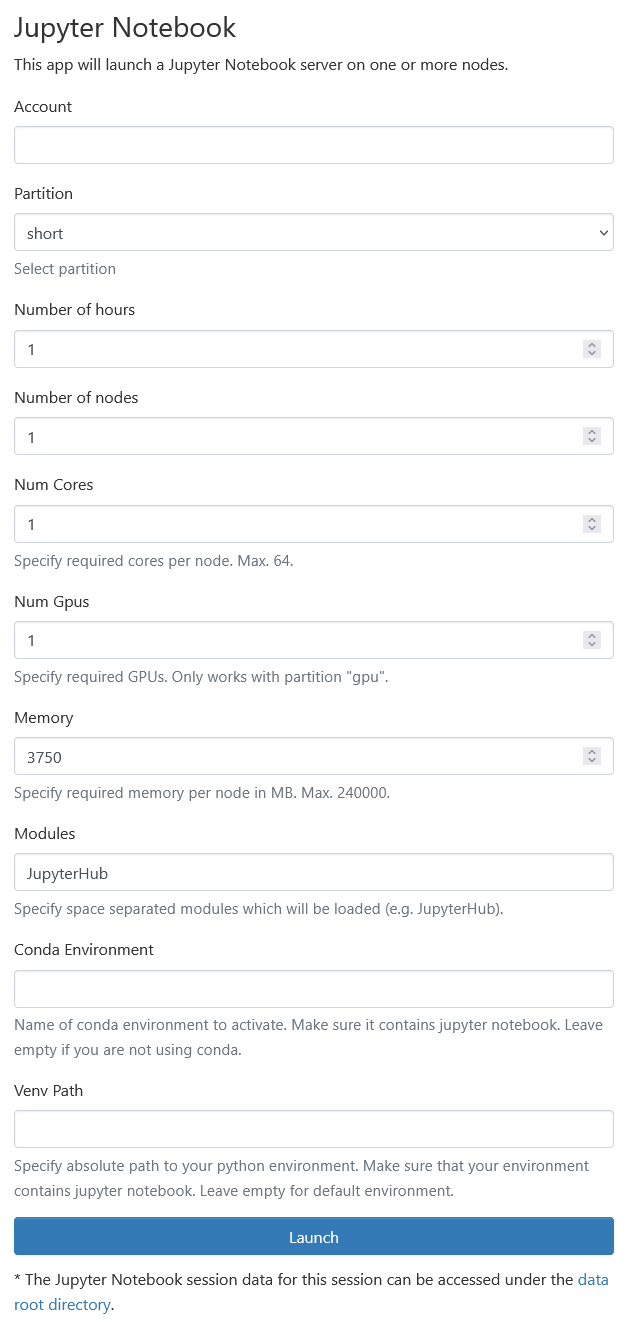
The form configures a Slurm job that will run the Jupyter server on a compute node.
Session Parameters
Account
Specify the project account that will be charged for the computation.
sprojects -a
Project information is also available in the NSCC portal.
Partition
Select the partition where the session will run. Partitions represent groups of nodes with specific properties (CPU nodes, GPU nodes, etc.).
Walltime
Specify how long the interactive job should run. When the walltime is reached, the session will terminate automatically.
Nodes and CPU cores
Select the number of compute nodes and CPU cores required.
Each compute node provides 64 CPU cores.
Each universal compute node provides 320 CPU cores.
Most notebook workloads run on one node.
GPUs
Specify the number of GPUs required.
GPU resources are available only when using a GPU partition (gpu).
Each GPU node provides 4 NVIDIA GPUs.
GPU resources are available when using gpu_short, gpu_medium, and gpu_long partitions.
Each GPU node provides 4 NVIDIA GPUs.
If a GPU partition is not selected, this parameter is ignored.
Memory
Specify the memory requirement in MB.
Each compute node provides 256 GB RAM.
Each universal compute node cn[001-045] provides 1152 GB RAM.
Each universal high-memory compute node cn[046-060] provides 2304 GB RAM.
Each accelerated compute node gn[001-078] provides 1152 GB RAM.
Environment Configuration
The notebook environment can be customized using modules or Python environments.
Modules
Modules define the software available in the notebook session.
module avail
Multiple modules can be specified separated by spaces.
Example:
Python/3.10.8-GCCcore-12.2.0 CUDA/12.0.0
Conda Environment
If you use Conda, specify the name of the environment. The environment
must contain the jupyter package.
conda install jupyter
Python Virtual Environment
If you use a Python venv, specify the absolute path to the
environment.
Example:
/home/user/venvs/myenv
If the environment depends on a Python module loaded via the module system, include that module in the Modules field.
Starting the Notebook
After submitting the form:
- Open OnDemand creates a Slurm job
- Once the job starts, a Jupyter server is launched
- A link to the notebook interface becomes available
You can then create notebooks, run code, and access files located in your home or project directories.
Recommendations
- Use single-node sessions unless distributed computing is required
- Request only the resources you need
- Set realistic walltime values to reduce queue time
- Store large datasets in project storage
- Terminate unused sessions to release cluster resources